
To prevent internal emails with colleagues from becoming billable time entries, create a filter rule for your mail integration.
Create an internal email filter
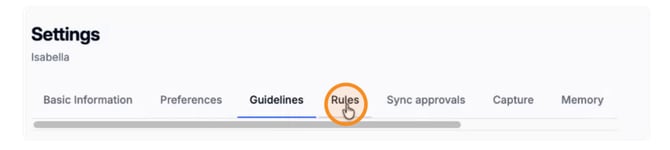
- Go to your company Settings, then select Rules.
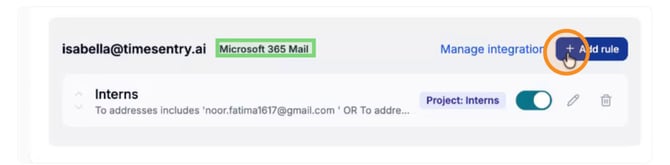
- Find your mail integration, such as Microsoft 365 Mail, then click Add rule.
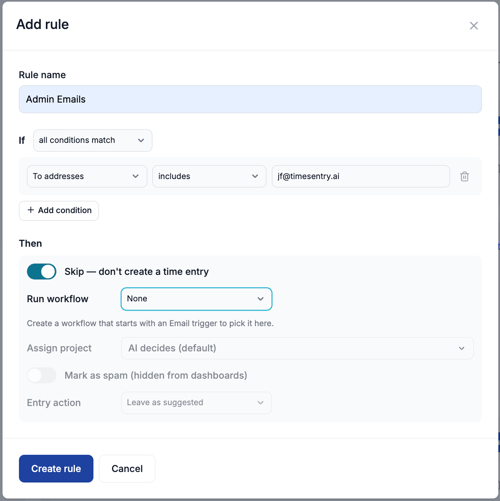
- Give the rule a clear name, such as “Admin Emails” or “Internal Emails.”
- Choose how the conditions should match:
- All conditions match: An email must meet every condition for the rule to apply.
- Any condition matches: An email only needs to meet one condition for the rule to apply.
- Add a condition for To addresses, select includes, and enter the email address of the colleague or internal recipient whose emails you want to exclude from time entry creation.
You can also add a condition for CC if needed. To exclude an email when the internal address appears in either To or CC, use any conditions. Use all only when both conditions must be true. - Under Then, enable Skip — don’t create a time entry so matching emails do not generate time entries.
- Review your conditions, then click Create rule to save the rule.
Remember: Emails that generate time entries are only read from your Sent mailbox, not your inbox or other folders.