
Tell the AI where an entry is incorrect and provide specific feedback to help it correct mistakes and avoid repeating them.
For example, flag an incorrect description, time logged, or case/matter mapping.
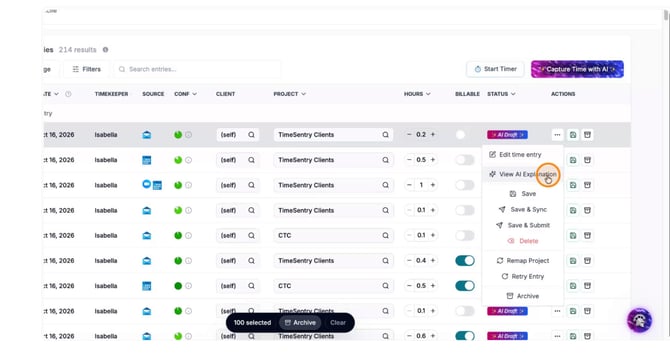
- On the entry you want to correct, click the three-dot menu.

- Select View AI Explanation to see how the entry was generated.
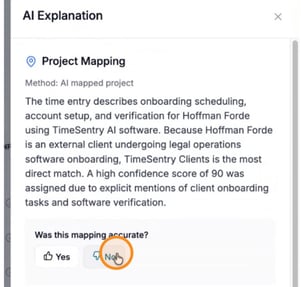
- If the mapping is incorrect, select No under “Was this mapping accurate?”
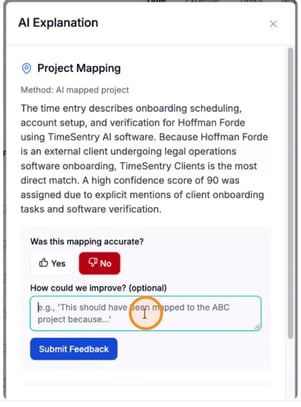
- Provide specific feedback on how the entry could be improved—for example, the correct case/matter, activity type, or description—then click Submit Feedback.
Example Feedback Prompts
Keep case numbers and names out of descriptions
“Do not include extraneous information in the time entry description, such as the case number or case name. Keep the description focused only on the work performed.”
Replace email addresses with a first initial and last name
“Don’t include full email addresses in time entry descriptions—always use the person’s first initial and last name instead (e.g., use ‘[J. Smith]’ instead of ‘[jsmith@example.com]’).”
Remember, your feedback helps TimeSentry learn your preferences over time. Tell it what it got right or wrong and how you would like the entry to read. Specific examples can help it generate clearer, more accurate time entries for you.