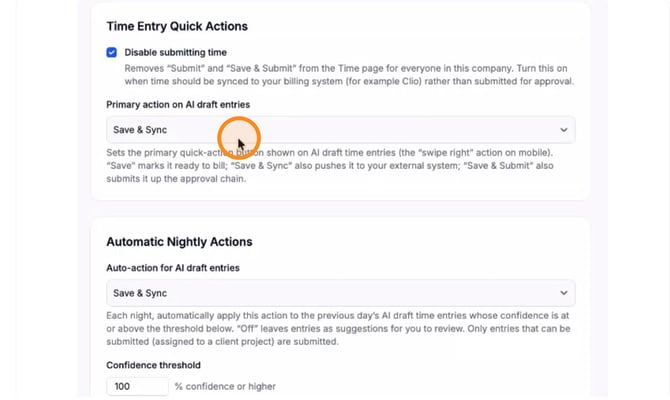
- Open your TimeSentry dashboard.
- Go to Settings, then select Preferences to open your configuration options.
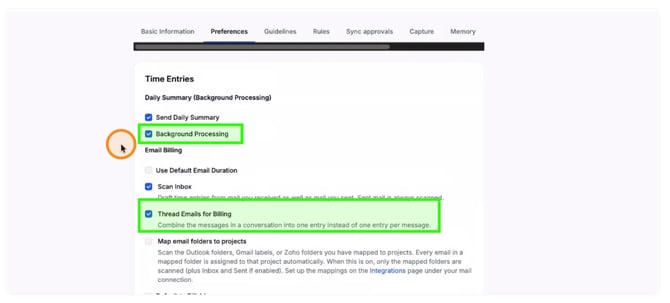
Background Processing & Email Threads
Automatically scan your connected data sources for time entries and group replies in each email thread into a single time entry.
- Select the Background Processing checkbox.
- Enable Thread emails for billing.
Activity Categories
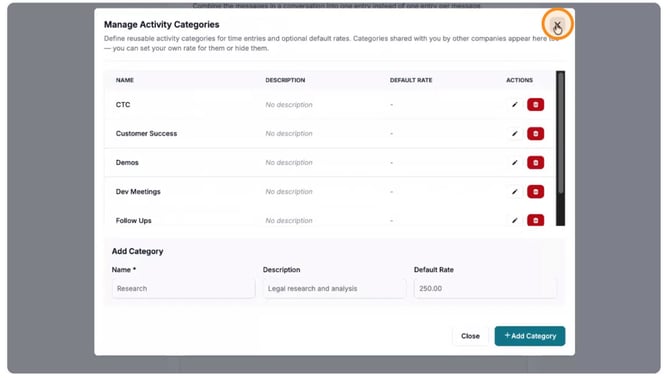
Manage which categories your time can be mapped to. This is especially useful for our MyCase users, where automated activity categories are not supported.
- Scroll down to the Activity Categories section.
- Click Manage Categories to add or adjust a category as needed.
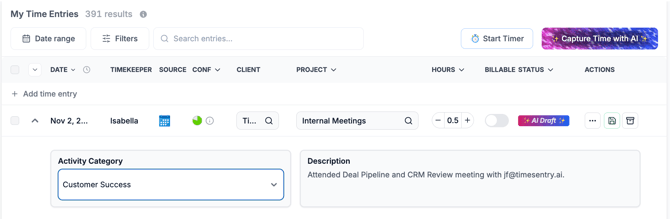
Activity categories appear on your timesheet as shown below.
Al Explanations
See why time matched to a particular client or case, and provide feedback to help customize how the AI generates your entries.
- Select the AI Explanations checkboxes to enable these options.

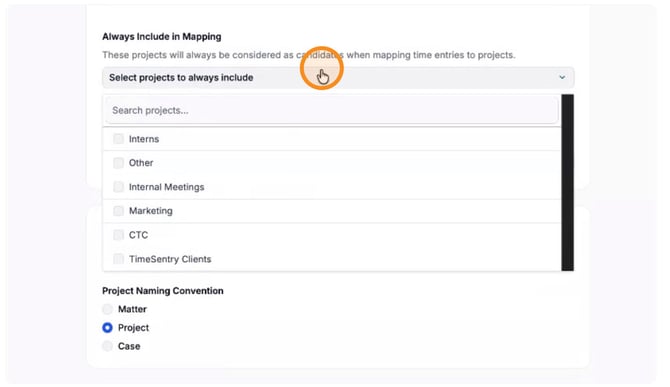
Always Include in Mapping
Choose which cases/matters TimeSentry considers when matching your time entries. If your Clio or MyCase account contains cases you do not work on, configure these mapping filters to ensure they're not considered.
- Under Always Include in Mapping, open the dropdown and select the cases/matters you want TimeSentry to always consider.
- Use the Exclude settings to exclude unwanted cases/matters from matching.
- Under Project Naming Convention, select Project, Matter, or Case so the labels match your team's terminology.
Time Entry Quick Actions
Skip firm admin approval and sync time directly to your practice management software.
- Under Time Entry Quick Actions, select Disable submitting time. This removes the Submit and Save & Submit options.
- Set your Primary action to Save & Sync.
Automatic Nightly Actions
As you become familiar with TimeSentry and are satisfied with the accuracy of your AI-generated time entries, consider enabling automatic nightly syncing for entries that meet your chosen confidence threshold.
- Under Automatic Nightly Actions, select Save & Sync from the dropdown.
- Set the Confidence threshold. (We recommend 90% or higher.)