
You've completed onboarding, now make TimeSentry work for you.
Explore the guides that fit your workflow, and share administrator tasks with the person who manages your firm's settings or Microsoft 365.

Setting Features
Set Up Your Time Entry and Sync Preferences
- Personalize how TimeSentry organizes, matches, and syncs your time so it fits your firm's workflow.
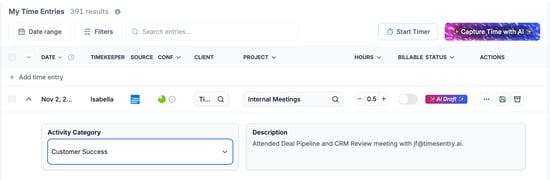
Exclude Internal Emails from Time Entries
- Keep emails with colleagues from generating unwanted time entries and reduce internal-email clutter on your timesheet.
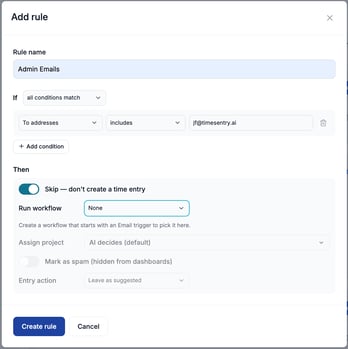
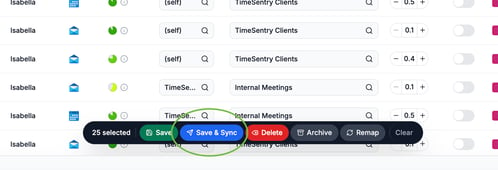
Sync Multiple Time Entries at Once
- Save time by syncing up to 100 reviewed entries to your connected practice management software in one batch.
Integrations & Apps
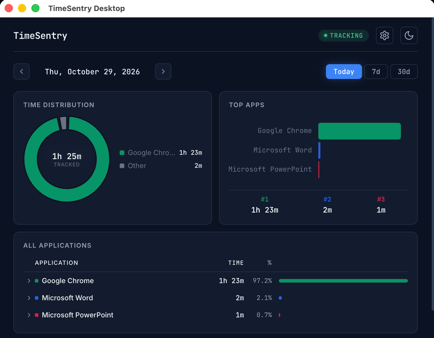
Install and use TimeSentry Desktop on Windows and macOS
- Capture work across desktop applications such as Word, PowerPoint, ChatGPT, and Claude for a more complete timesheet.
Install the TimeSentry Add-in for Microsoft Word
- Bring TimeSentry into your Word workflow, with installation managed by your Microsoft 365 administrator.
Sending Feedback
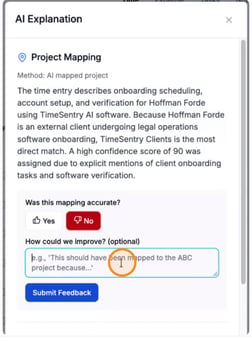
Improve Your AI Time Entries with Feedback
- Help TimeSentry better reflect your preferences for time-entry descriptions and case/matter matches through specific feedback.
Build a review routine that works for you
Whether you check TimeSentry daily, weekly, or monthly, set aside time to review your captured work on a schedule that fits your workflow and your firm's billing deadlines.
A consistent routine helps you keep your timesheet accurate and your entries ready when it's time to bill.
- Review your captured work:
- Check that your entries reflect the work you completed, including descriptions, time, and case/matter matches. Make any adjustments before syncing.
- Give feedback where it helps:
- If an AI description or case/matter match needs improvement, share specific feedback so TimeSentry can better reflect your preferences.
- Sync entries when they are ready:
- Send reviewed entries to your connected practice management software according to your firm's review and approval process.
Choose the review schedule you can maintain and adjust it as you become more familiar with TimeSentry.
Need help? Contact the TimeSentry team and tell us what you are working on.