
To sync multiple time entries at once, adjust how many rows appear on your time entries page. You can display and select up to 100 entries at a time.
- Open the Time tab.
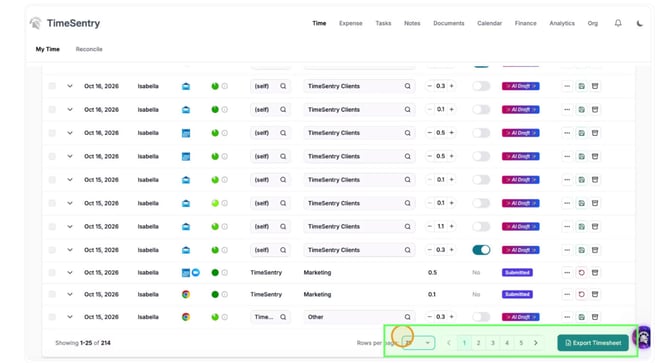
- Scroll to the bottom of the time entries table.
- Use the Rows per page dropdown to display up to 100 rows.
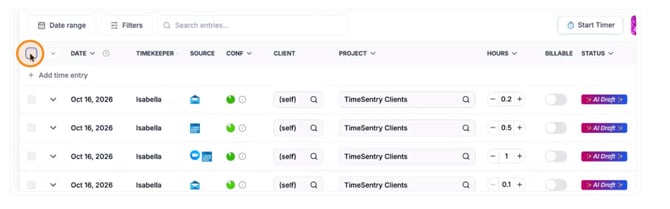
- Return to the top of the table and select the checkbox in the header row to select all entries displayed on the current page.
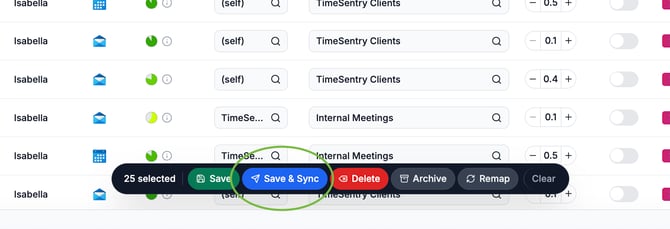
- Review the selected entries, then choose Save & Sync from the action toolbar that appears.
If you have more than 100 entries to sync, repeat these steps for the remaining pages.