---
title: Connect to Clio
description: Connect TimeSentry to Clio or Clio EU, review matter mappings, choose import settings, and verify your records before enabling automatic syncing.
---
[Skip to content](https://help.timesentry.ai/connect-timesentry-clio#main-content)
English
Show submenu for translations

Open main navigation
Close main navigation
- English
Show submenu for translations
- [Contact us](https://timesentry.ai/contact)
[Contact us](https://timesentry.ai/contact)
How can we help you?
- There are no suggestions because the search field is empty.
1. [TimeSentry Knowledge Base](https://help.timesentry.ai/?hsLang=en)
2. [Getting Started](https://help.timesentry.ai/getting-started?hsLang=en)
3. [Capture and sync your first time entries](https://help.timesentry.ai/getting-started?hsLang=en#capture-and-sync-your-first-time-entries)
# Connect to Clio
## Connect your firm's Clio account so TimeSentry can match time entries to the right clients and cases.
As an official Clio integration TimeSentry can work with your matters, contacts, activity categories and documents for your firm.
### Before you begin
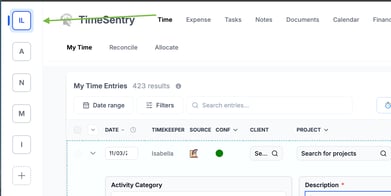
- Confirm that the active TimeSentry company is the firm you want to connect.
- Use a Clio account with access to the clients and cases you need.
- Connecting Clio from the free tier starts a **14-day Professional trial**.
***Note:** If you're signing in to TimeSentry for the first time, using the guided onboarding steps will look slightly different. Both paths connect your Clio account.*
### Connect Clio
1. Open your **[TimeSentry dashboard](https://timesentry.pro/time/all).**
2. Click the puzzle icon to open the **Integrations** panel.
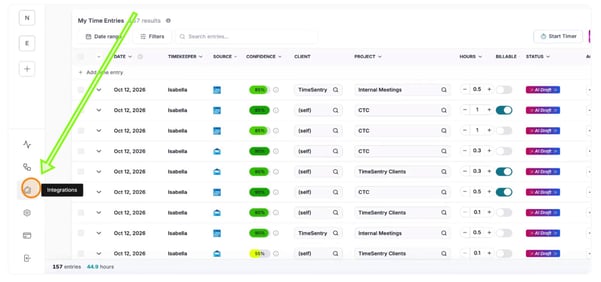
3. Find **Clio** under **Practice Management**, then click **Connect**.

4. Follow the sign-in prompts to authorize the connection.
### Import clients and cases
1. Select **Manage** next to your active Clio connection.

2. Under **Clio Mappings**, open **Cases** and select **Import All Cases**.
3. Open **Clients** and choose **Import all Clients**.
4. Confirm **Automatic Synching** is active.

5. See the popup at the **bell icon** at the top right of the main navigation bar to monitor the import status.

6. When the import finishes, open the **Org** tab on the main navigation to review your imported cases.
Your Clio integration is now active. If you're in the completing onboarding, continue with [**Connect Your Activity Sources.**](https://help.timesentry.ai/connecting-outlook-and-generating-ai-time-entries?hsLang=en)
---
### Review mappings after reconnecting
If you've already completed onboarding and are reconnecting Clio, refresh your time-entry mappings.
1. Return to your **[TimeSentry dashboard](https://timesentry.pro/time/all).**
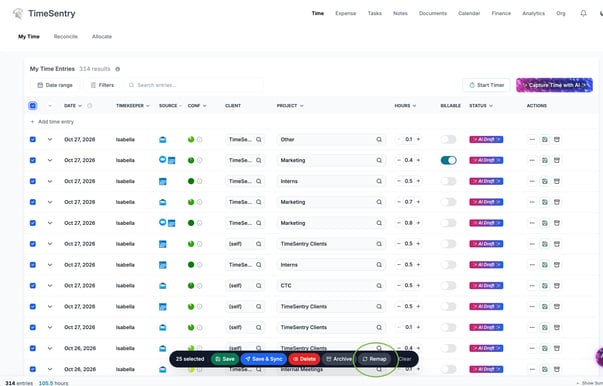
2. Select the time entries you want to update. *Tip: Use the multi-select checkbox.*
3. Select **Remap** from the action toolbar.
4. Once remapping finishes, review each entry. Confirm that the client, case or matter, hours, and other details are correct.
For help reviewing your entries, see:
- Guide on mapping
- [Improve Your Time Entries with Feedback](https://help.timesentry.ai/post-onboarding-guide-1?hsLang=en)
- Review confidence scores
---
### Sync time entries to Clio
1. Select the time you want to sync.
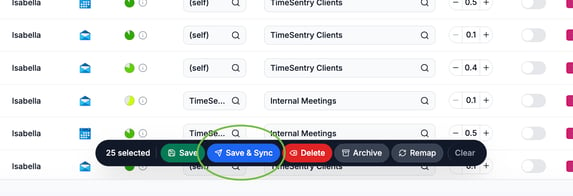
2. Click **Sync & Save** in the action toolbar to send it.
**Note:** All selected time entries must have the **AI Draft** status for **Sync & Save** to appear in the multi-select view.
3. Once synchronization finishes, confirm that the entries show the **Synched** status.

4. Click **Synched** on an entry to open it directly in Clio.
### Troubleshoot a missing case
If a case doesn't appear after importing:
- Confirm that the connected Clio user can access the case.
- Check that the correct TimeSentry company is active.
- Review any filters or mappings that could hide the case.
- Wait for any imports or synchronization already in progress to finish before trying again.
### Related guides
- [Sync Multiple Time Entries at Once](https://help.timesentry.ai/mass-sync-multiple-time-entries-at-once?hsLang=en)
- [Create and Manage Projects in TimeSentry](https://help.timesentry.ai/how-to-create-and-manage-projects-at-timesentry?hsLang=en)
- [Understand companies, contacts, and relationships](https://help.timesentry.ai/understand-companies-contacts-and-relationships?hsLang=en)
- [Troubleshoot sync, authorization, mapping, and duplicate-data issues](https://help.timesentry.ai/troubleshoot-integration-connections-syncing?hsLang=en)
### Related guides
- [Create and Manage Projects in TimeSentry](https://help.timesentry.ai/how-to-create-and-manage-projects-at-timesentry?hsLang=en)
- [Create and manage contacts](https://help.timesentry.ai/create-and-manage-contacts?hsLang=en)
- [Create and manage expense entries](https://help.timesentry.ai/expenses-record-review?hsLang=en)
- [Troubleshoot sync, authorization, mapping, and duplicate-data issues](https://help.timesentry.ai/troubleshoot-integration-connections-syncing?hsLang=en)
- [Getting Started](https://help.timesentry.ai/getting-started?hsLang=en#main-content)
- [Clio and MyCase onboarding checklists](https://help.timesentry.ai/getting-started?hsLang=en#clio-and-mycase-onboarding-checklists)
- [Capture and sync your first time entries](https://help.timesentry.ai/getting-started?hsLang=en#capture-and-sync-your-first-time-entries)
- [Review your week in TimeSentry](https://help.timesentry.ai/getting-started?hsLang=en#review-your-week-in-timesentry)
- [Integrations](https://help.timesentry.ai/integrations?hsLang=en#main-content)
- [Practice Management](https://help.timesentry.ai/integrations?hsLang=en#practice-management)
- [Email, Calendar, Chat & Phone](https://help.timesentry.ai/integrations?hsLang=en#email-calendar-chat-phone)
- [Accounting & Payroll](https://help.timesentry.ai/integrations?hsLang=en#accounting-payroll)
- [Desktop, Browser, Mobile & Office](https://help.timesentry.ai/integrations?hsLang=en#desktop-browser-mobile-office)
- [Choose & Manage Connections](https://help.timesentry.ai/integrations?hsLang=en#choose-manage-connections)
- [Settings](https://help.timesentry.ai/settings?hsLang=en#main-content)
- [Preferences & Rules](https://help.timesentry.ai/settings?hsLang=en#preferences-rules)
- [Company settings and team access](https://help.timesentry.ai/settings?hsLang=en#company-settings-and-team-access)
- [Account & Subscription](https://help.timesentry.ai/settings?hsLang=en#account-subscription)
- [Privacy & Recording](https://help.timesentry.ai/settings?hsLang=en#privacy-recording)
- [API Keys & MCP](https://help.timesentry.ai/settings?hsLang=en#api-keys-mcp)
- [Troubleshooting](https://help.timesentry.ai/troubleshooting?hsLang=en#main-content)
- [Login & Access](https://help.timesentry.ai/troubleshooting?hsLang=en#login-access)
- [Missing or Incorrect Entries](https://help.timesentry.ai/troubleshooting?hsLang=en#missing-or-incorrect-entries)
- [Billing & Sync](https://help.timesentry.ai/troubleshooting?hsLang=en#billing-sync)
- [Capture Apps](https://help.timesentry.ai/troubleshooting?hsLang=en#capture-apps)
- [Time](https://help.timesentry.ai/time?hsLang=en)
- [Expense](https://help.timesentry.ai/expense?hsLang=en)
- [Tasks](https://help.timesentry.ai/tasks?hsLang=en)
- [Notes](https://help.timesentry.ai/notes?hsLang=en)
- [Documents](https://help.timesentry.ai/documents?hsLang=en)
- [Finance](https://help.timesentry.ai/finance?hsLang=en)
- [Analytics](https://help.timesentry.ai/analytics?hsLang=en)
- [Org](https://help.timesentry.ai/org?hsLang=en)
- [Other Platform Features](https://help.timesentry.ai/other-platform-features?hsLang=en)
- [FAQs](https://help.timesentry.ai/faqs?hsLang=en)
- [Archive](https://help.timesentry.ai/archive?hsLang=en)
[](http://www.timesentry.ai)
[mailto:email@email.com](mailto:email@email.com)
Copyright © 2026, TimeSentry